
Keys made on the phone
Pairing creates the phone's keys in the Android Keystore. They never leave it, and you confirm the pairing by comparing six digits on both screens.
SuperTerminal for Android
The phone app pairs with SuperTerminal on your Windows computer. Chat with Comet, approve what it wants to do, read and prompt your coding sessions, and talk to it by voice. From the next room or from another country, over a link that only your phone and your computer can open.
SHA-256 checksum: 0716e92ecd63ae23cf276bebe4c5f6b6d1e8d73e8c10b908504f4b95231ba96d How to install
How it works
The phone shows what the computer has. Comet, your sessions and their usage stay on the computer; the phone reads them, and asks before anything runs.
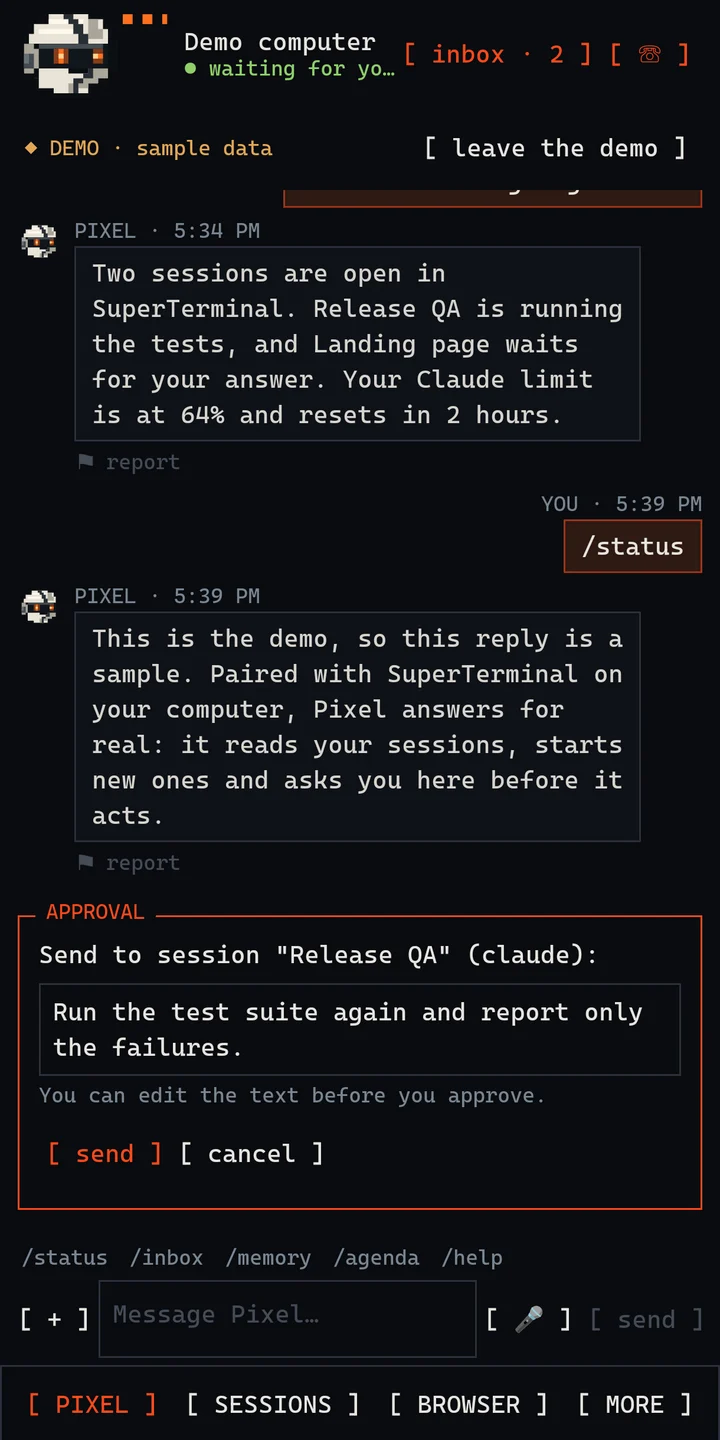
Write or dictate to Comet. When it wants to prompt a session, open one or schedule work, an approval card appears. You can edit the text, then approve with your fingerprint, face or screen lock. The computer accepts only an approval signed by your phone.
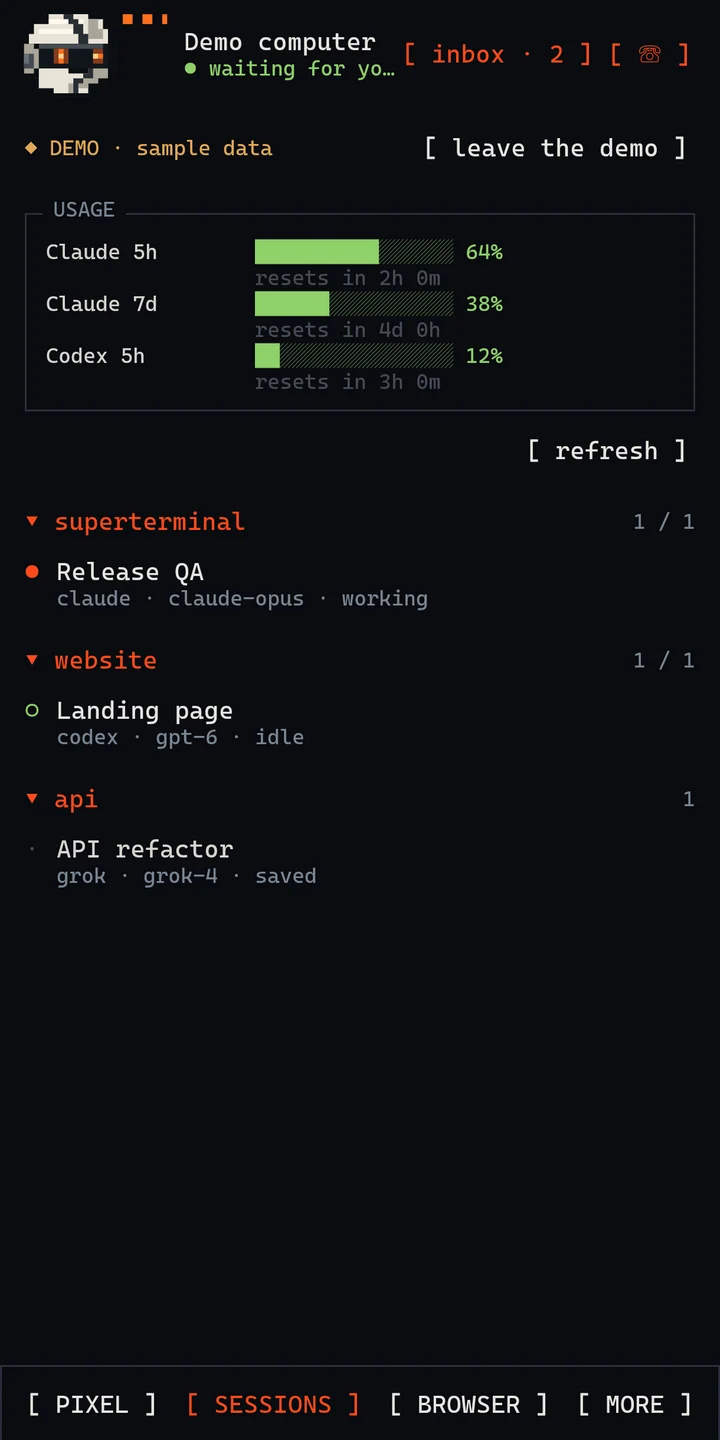
See the Claude Code, Codex and Grok sessions on your computer grouped by project, which are working and which wait for you, and how much of each plan's limit is left, with its reset time.
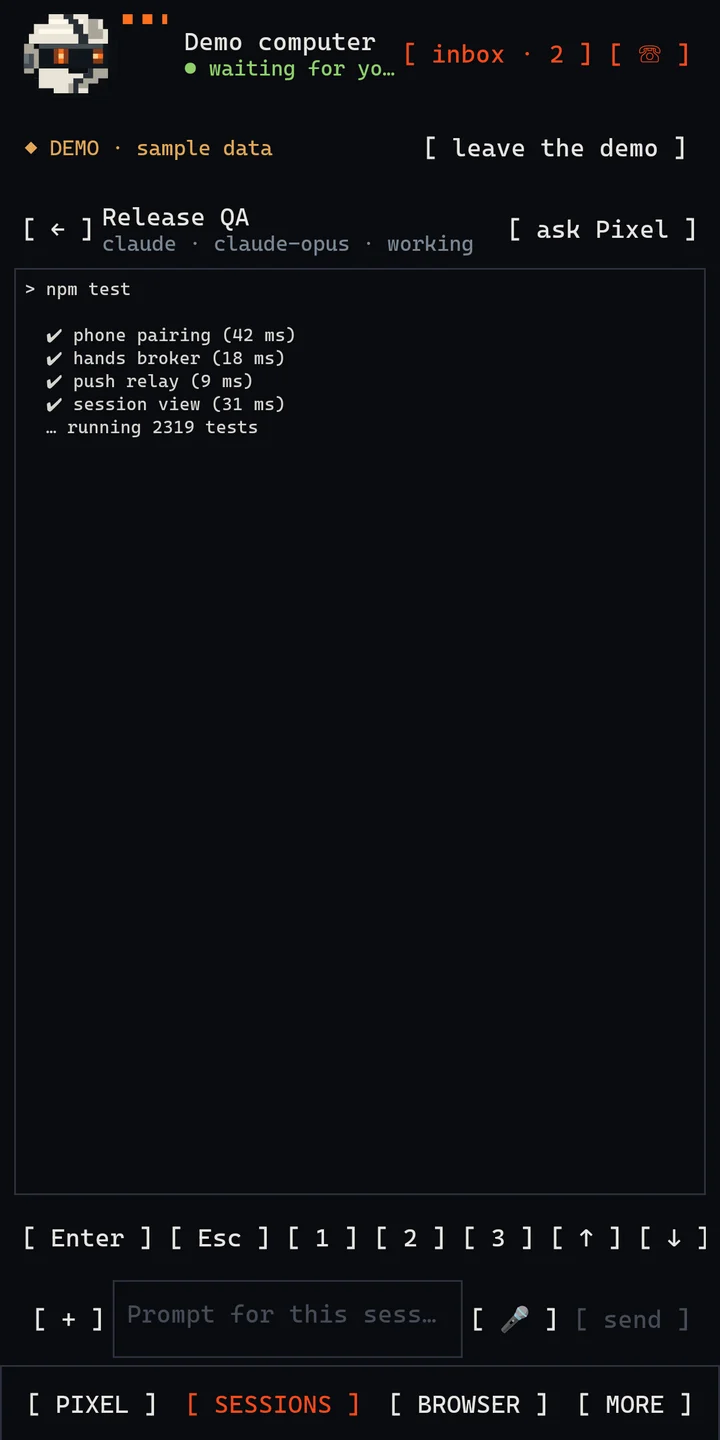
Open a running session to read its terminal, send a prompt with files from your phone, or press the keys its menus ask for: Enter, Esc, numbers and arrows.
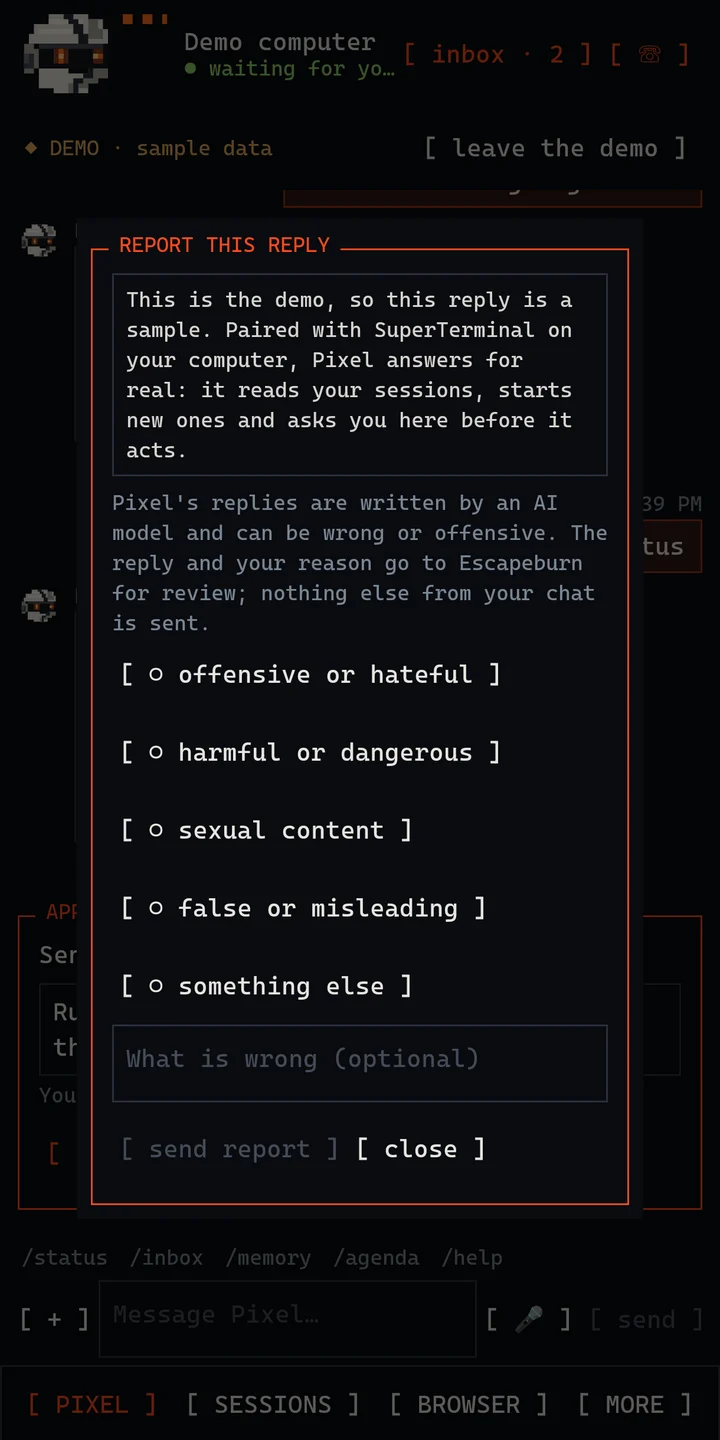
Comet's replies come from the AI model you chose on the computer. If one is offensive, harmful or wrong, report it from the chat; only that reply and your reason go to Escapeburn for review.
Phone hands
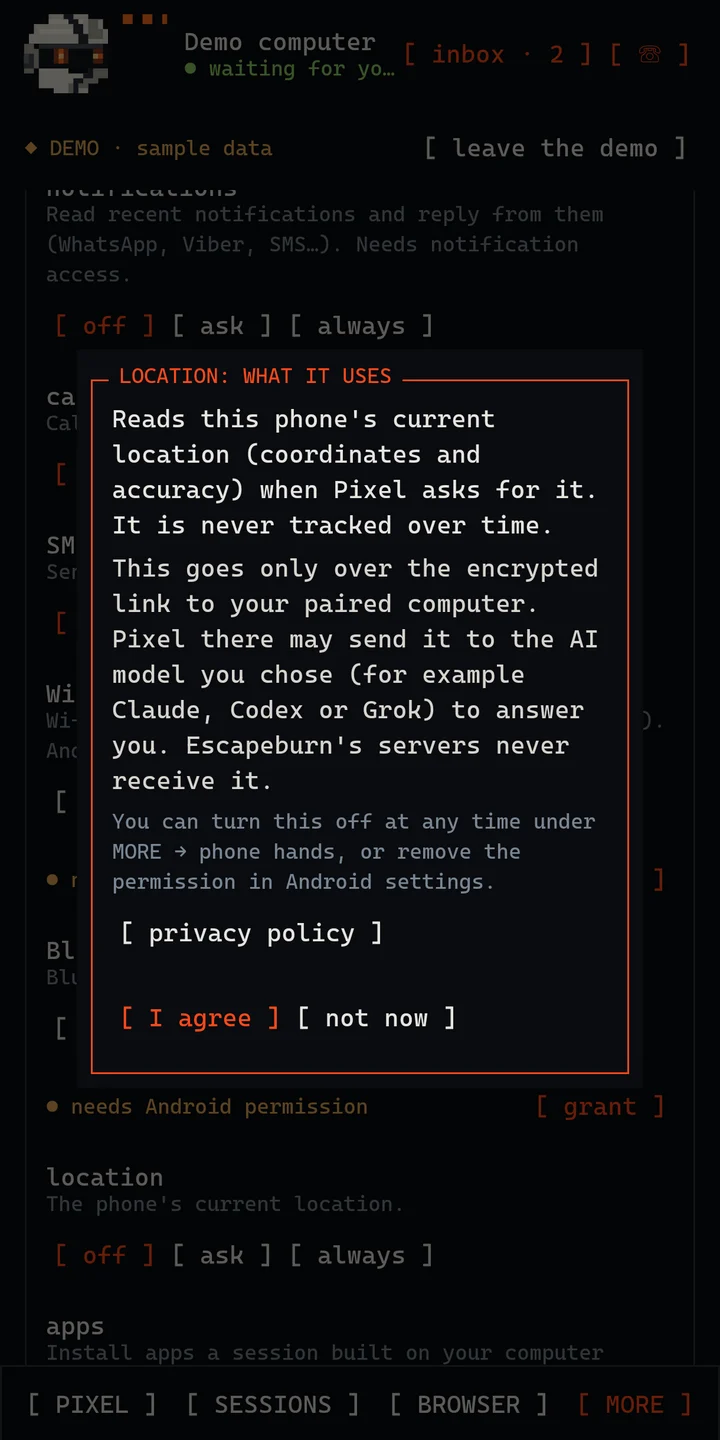
Comet can use the phone for you: silence it, read notifications, call, prepare an SMS, check Wi-Fi and Bluetooth, set alarms, filter calls. Each capability starts off. Before it is used for the first time, the app tells you exactly what it reads and where it goes, and only then does Android ask for its permission.
After Comet has read messages, mail or web text, calls, SMS and replies always need your confirmation on the phone. Coding sessions can use the phone only if you allow sessions, for two hours at a time.
Security
Pairing creates the phone's keys in the Android Keystore. They never leave it, and you confirm the pairing by comparing six digits on both screens.
Phone and computer check each other's key on every connection, over TLS. A different computer at the same address is refused.
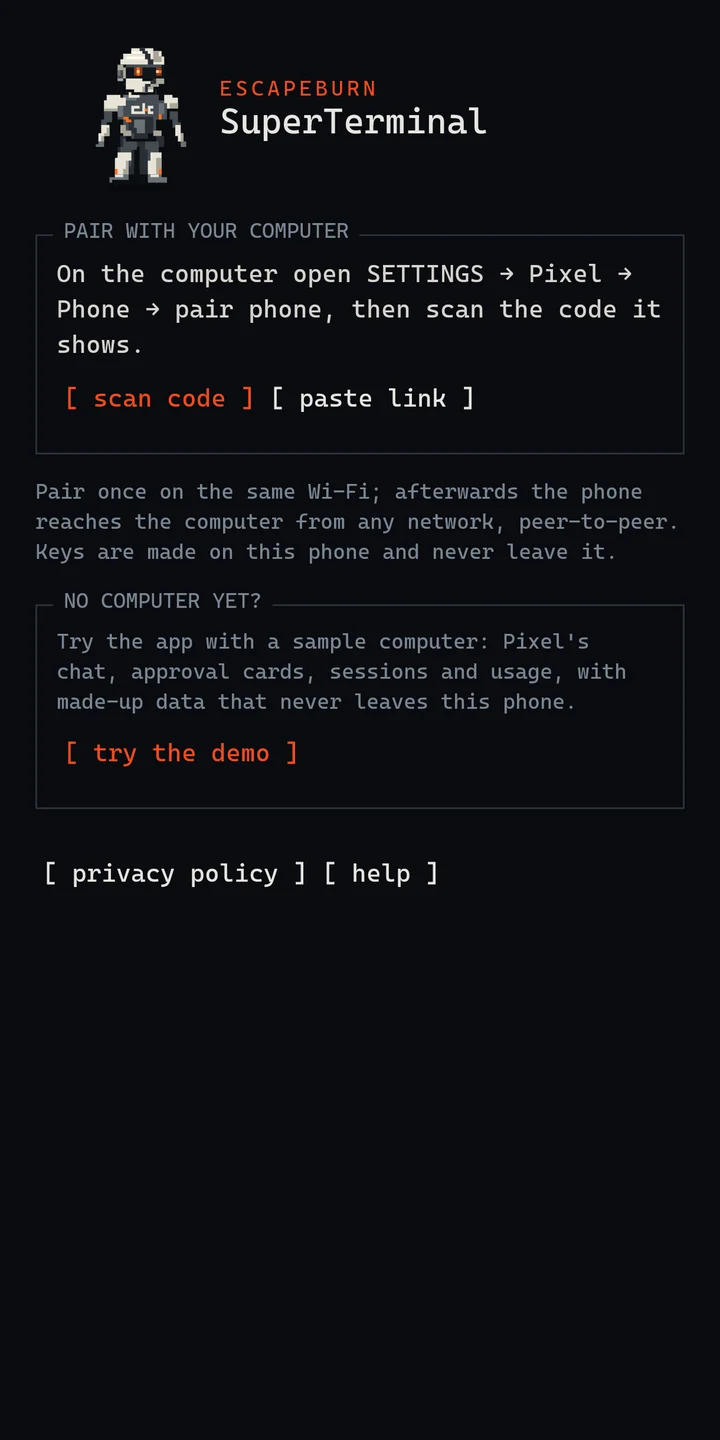
Pair once on the same Wi-Fi. Afterwards the phone reaches the computer peer-to-peer over an encrypted tunnel; relays, if needed, see only ciphertext.
When the app is closed, news arrives through Google's push service. The computer encrypts the preview with a key only your phone has, so neither Google nor Escapeburn can read it.
No computer yet?
Tap "try the demo" on the first screen: Comet's chat, approval cards, sessions and usage, with made-up data that never leaves the phone. Pair with SuperTerminal on your computer whenever you are ready.
Documents
Pair the phone, chat with Comet, approve, open sessions, and set what the phone may do.
Download the APK from escapeburn.com, install it, check it and keep it up to date.
What the app processes, where it goes, how long it stays and your choices.
What data the app handles, where it goes, how long it is kept and how it is protected.
Every Android permission the app may ask for, and why.
Remove the pairing, the data on your computer and your Escapeburn account.
How Comet's AI replies work, and how to report one.
Get help, report a problem, contact us.
Yes, for real use: the app is the phone side of SuperTerminal for Windows, and Comet and your sessions run there. The demo mode works without a computer.
Yes. After pairing on the same Wi-Fi, the phone connects from any network, peer-to-peer, as long as SuperTerminal runs on the computer.
The one you chose in SuperTerminal on your computer, with your own subscription (for example Claude, Codex or Grok). The phone app has no model of its own.
Only for the capabilities you set to "always", and never for calls, SMS or replies after it has read outside text. Everything starts off, and you can turn it all off with one button.
From escapeburn.com, as an APK file that you install yourself; the Install page explains each step. The app updates itself from there and keeps your pairing and settings.